Features Of
Googles Inbox
How Inbox works with Gmail
Inbox was built by the Gmail team to give you a new way to stay organized and get back to what matters. Everything from Gmail (your emails, contacts, and labels) is available in Inbox. Gmail and Inbox stay in sync so what you do in one app carries over to the other. Gmail and Inbox have many of the same features, but there are differences. To get the most out of Inbox, try to use it for all your email. You can always switch to Gmail if you want to.
Clean up your inbox with bundles
Bundling
Bundles group emails together in your inbox. Whenever an email in a bundle arrives, you’ll see a bundle like this in the inbox:
At a glance, you can see:
- How many total emails are in the bundle: A light gray number like “25+” is the total number of emails with that label.
- Who the senders of the emails are: Sender names show up at the top of the bundle and show up in boldface if the email is unread.
- How many new emails are in the bundle: A message like “2 new” means two new messages with that label have arrived since you last opened it.
You can also change how often you see specific bundles in your inbox and turn bundling on and off any time.
Choose the labels you want to bundle
Before you can bundle your emails into topics of your choice, you have to choose or set up labels.
Inbox has labels already set up to group common types of emails:
- Promos: deals, offers, and other marketing and promotional messages
- Social: notices from social networks and other social media services
- Updates: notifications from online accounts, such as alerts and confirmations
- Finance: money-related messages, such as bills and bank statements
- Purchases: receipts, shipping updates, and other info from stores and companies
- Trips: Travel-related emails, such as flight confirmations and hotel reservations
- Forums: messages from mailing lists and discussion groups
- Low Priority: emails you’ve labeled as less important
Or
Use labels that you have setup in Gmail
Create Custom lables

Pin emails you need to get back to
Reasons to pin emails
- Pin emails in labels to see them directly in your inbox
- Move emails back to your inbox
- Mark unpinned emails as done in one click
- View only your pinned emails
If there’s an email in a bundled label in your inbox (like Promos or Social) that you want to get back to, select the email and click Pin . You’ll see the email directly in your inbox, as well as inside the label.
To see a list of only your pinned emails and reminders, click the switch at the top of your inbox 

Snooze emails& reminders until later
Snooze an email or reminder
- Snooze until the suggested time
- Snooze until a specific time
- Snooze until someday
- Snooze until you arrive at a place
- Create a repeating reminder
Snooze an email that has dates and times (like event confirmations or shipping notifications), you’ll get an option to snooze to a suggested time, like the day of your concert or the morning your package will arrive.
Choose the Someday option for emails or reminders that you might want to get back to, but aren’t sure when. You can go back through your Someday list later and decide what to do with them.
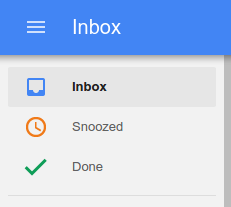
You can see everything in your Someday list by going to the Menu 

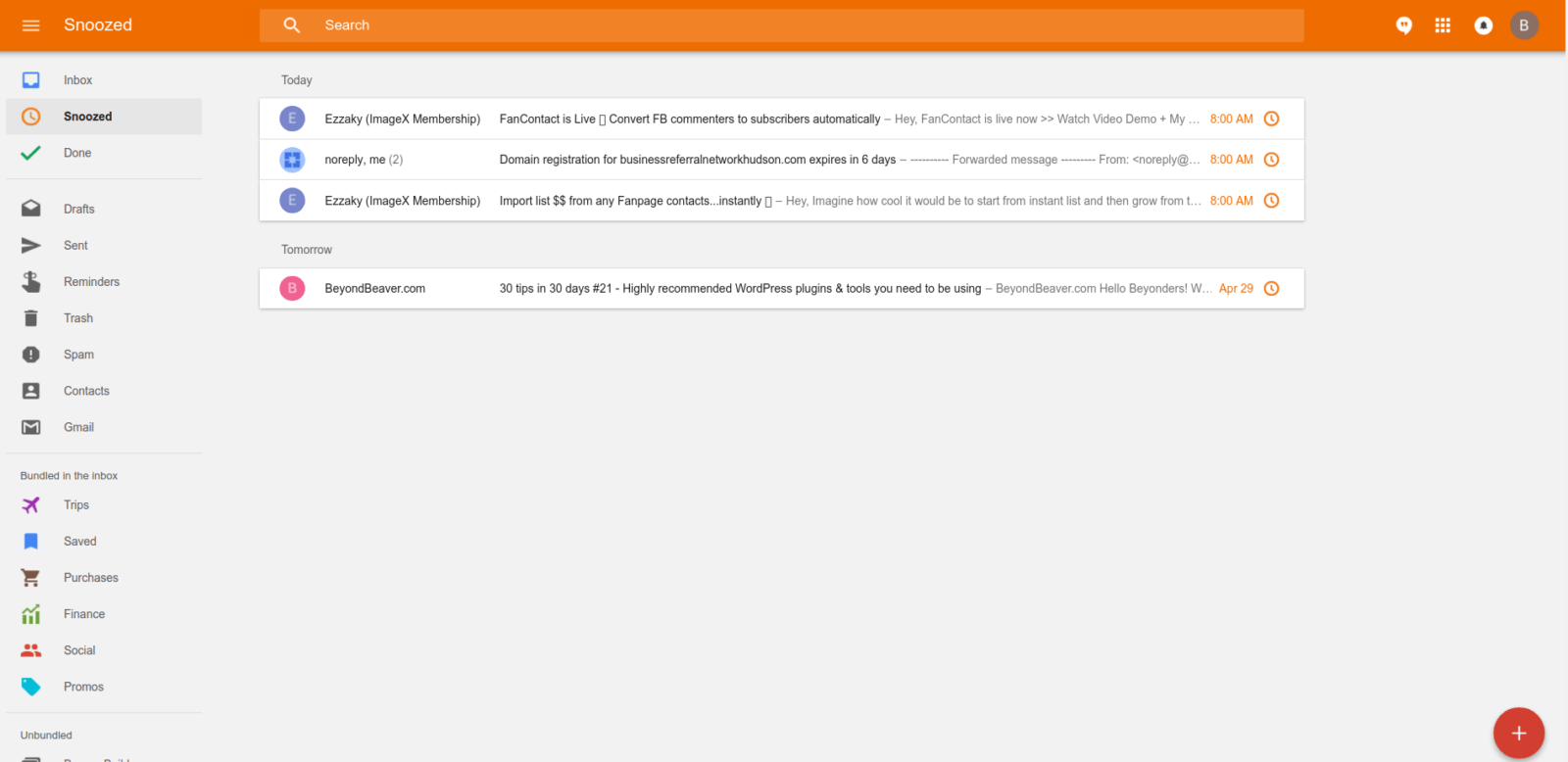
Your email or reminder will stay in Snoozed until you move it yourself. You can mark it done, move it to your inbox with pin, or choose a different snooze option.
You can snooze emails or reminders to get them out of your inbox until you get to a specific place, like home or work. Once you arrive at the location you chose, you’ll see your email at the top of your inbox and get a notification on your mobile device (unless you turned off notifications).
- Open an email or reminder and click Snooze .
- Click or tap Pick place.
- Enter a new address, or choose Home or Work.
If there’s something you need to do regularly, you can create a reminder that repeats.
- Open Inbox.
- Go to the Create button .
- Click or tap Reminder .
- Type in your reminder.
- Click or tap Snooze .
- Select Pick date & time.
- Choose the first day for your reminder. Then, choose a time.
- Click or tap Does not repeat and choose one of the options.
- Save your reminder.
Mark done emails & reminders
Mark done emails & reminders
- Mark done emails & reminders
- Mark multiple emails or reminders as done
- Clear out many emails at once
- Find emails you marked as done
- Move emails back into your inbox
